FlipGift for Chrome: your price, on the store’s own page
Shop US stores the way you always do. Where a FlipGift seller can buy the item for you with their store gift card, the extension shows what you would pay instead — up to 40% under the price tag — and opens the order form with the product already filled in.
Chrome extensions run on a computer, not on a phone or a tablet. Open flip.gift/extension there, or send yourself this page.
Chrome, Edge, Brave and other Chromium browsers on a computer · no permission warning at install · no account needed until you order
Three steps, on the store’s own site
Shop the way you already do
On a store that has FlipGift sellers right now, the toolbar icon turns lime and shows that store’s best rate. Which stores those are changes every day.
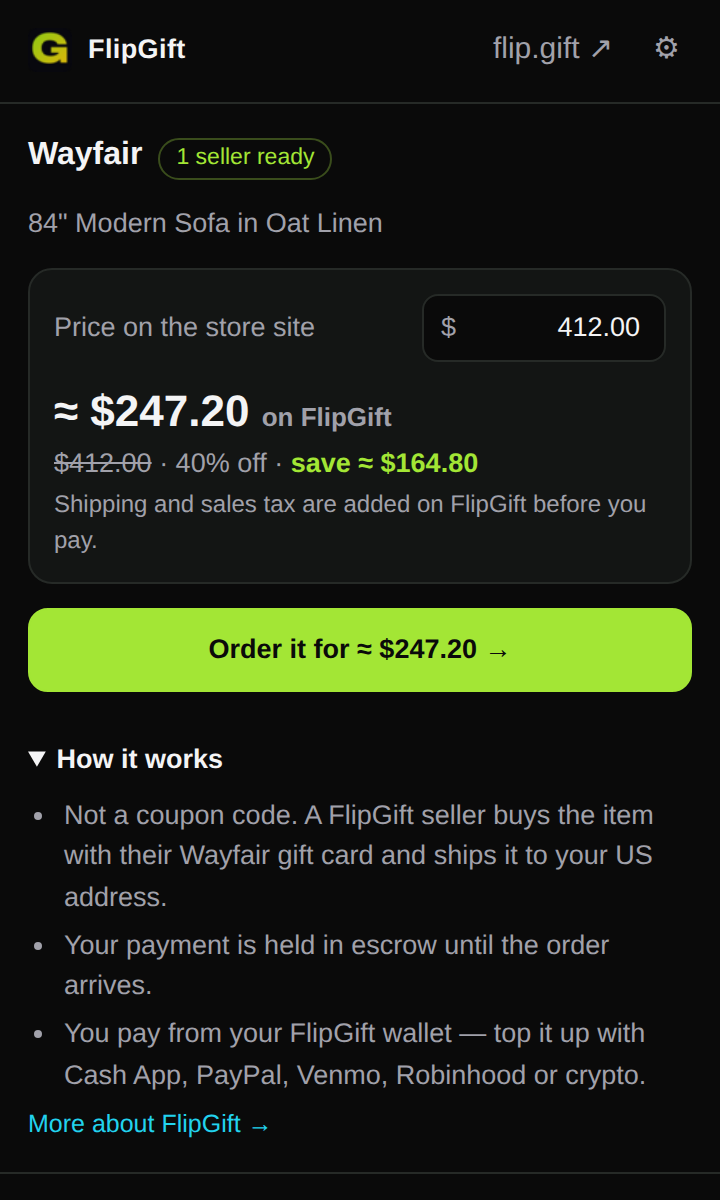
Click the icon on a product
The popup reads the name and the price off the page and shows what the same item costs through FlipGift. Or right-click a product link and choose “Buy this with a FlipGift discount”.
Order it on FlipGift
One button opens the order form with the link, the name and the price filled in. A seller buys the item with their gift card and ships it to your US address; your payment waits in escrow until it arrives.
Quiet until there is something to say
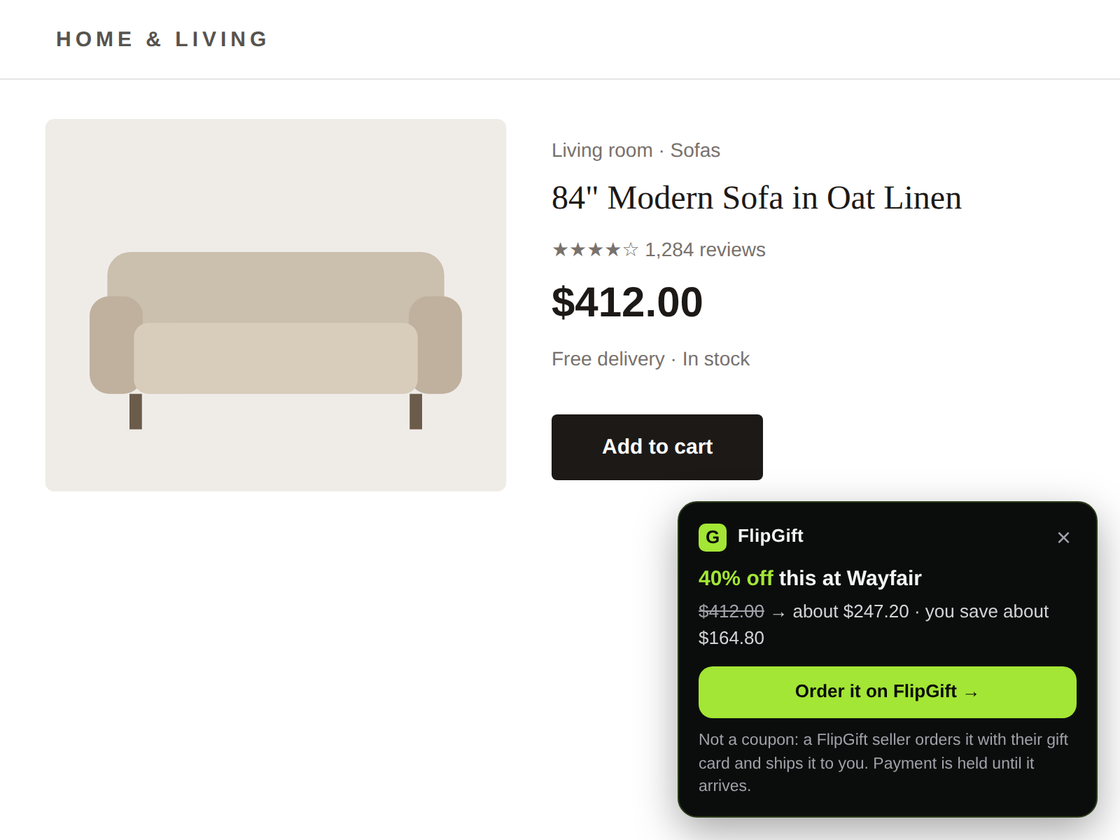
A card on the page — only if you ask for it
Automatic savings is off until you switch it on in the extension’s settings. Chrome then asks you to allow the store sites in FlipGift’s catalog, and a small card appears on a product or cart page when a seller can take that exact order. Close it and it stays away from that store for 12 hours.
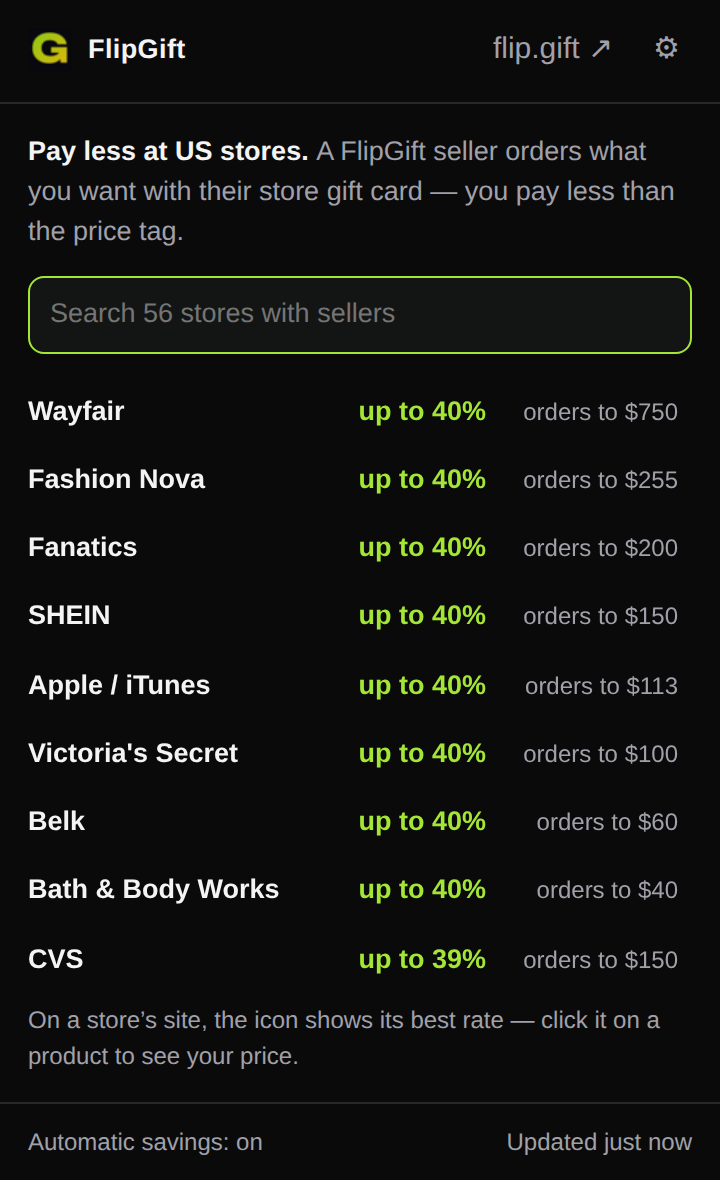
Every store with a seller, one click away
Anywhere else, the popup is the live list: each store with a seller right now, how deep the discount goes and how big an order they cover. Pick one to start an order there, or open the store’s site from the same row.
Too big for today’s sellers? Get an alert
When your order is larger than anyone can cover today, or the store has no seller yet, ask for an alert. The extension checks every 30 minutes and notifies you when someone can take it — the only moment it asks for permission to show notifications.
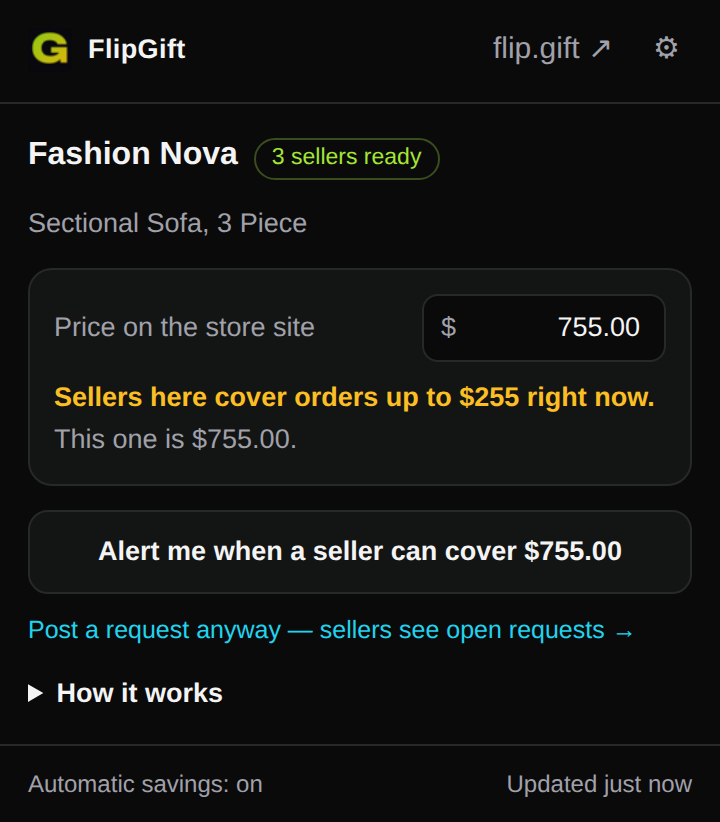
Screens taken on October 7, 2026 with that day’s sellers. Stores and rates change daily; the product in them is a stand-in, not a listing.
A store balance you won’t use, turned into cash
See what your balance is worth, on the store’s own site
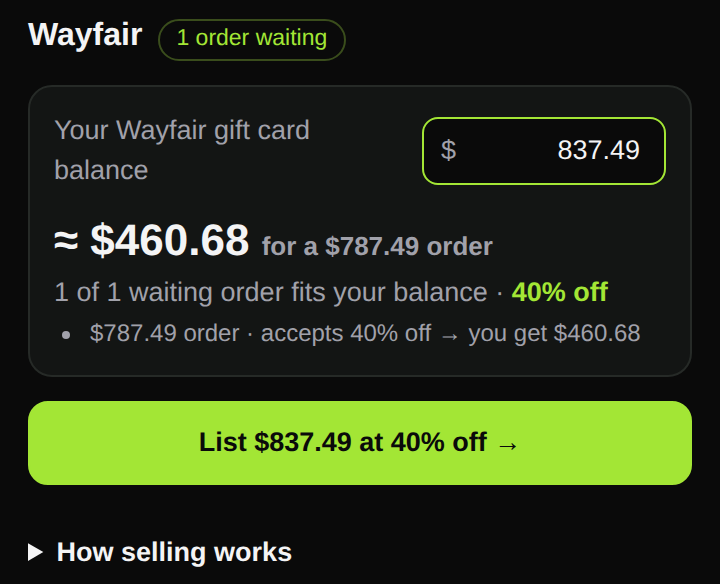
Switch the popup to Sell a balance. It shows the orders buyers are waiting on at that store and the cash each one pays you after FlipGift’s fee. Type your balance to see which orders it can fill; one button opens the sell form with the store, the amount and the rate filled in. You keep the card — you order the buyer’s item with it, and their payment, already in escrow, is released to you after delivery. How selling works →
Already selling? Your order sheet, next to the checkout
Connect your FlipGift account in the extension’s settings and each order you are filling appears in the popup: what to buy, the exact address to ship to with a copy button for every field, and the time left. When the store confirms the order, capture that page as your proof and submit it without leaving the store’s site; add the tracking number the same way. A notification tells you when a new order is matched to you. Connecting is the one time the extension asks for access to flip.gift, and nothing else.
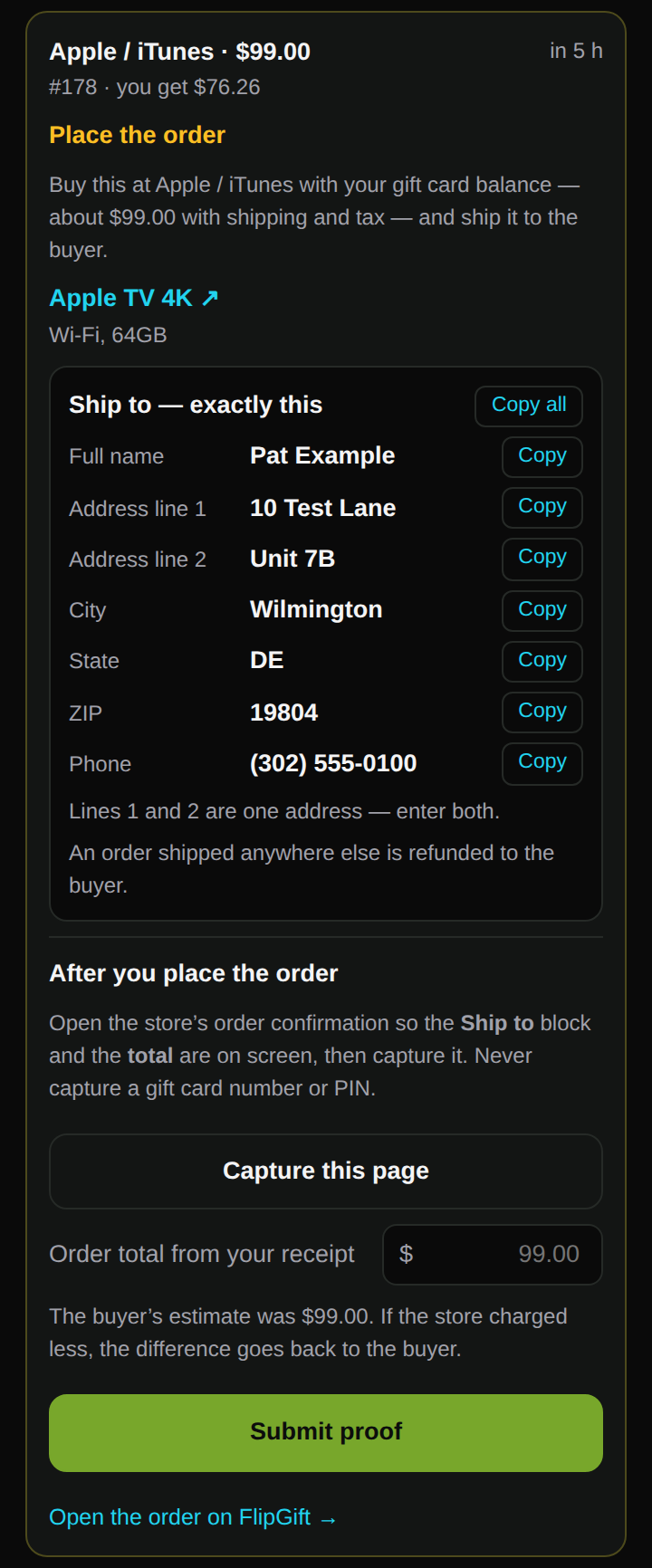
The Sell side arrives with version 1.1; Chrome updates the extension by itself. The order and the address in these screens are stand-ins, not a real buyer.
What it is, and what it never does
Good to know
- It is not a coupon code, and it tries nothing at checkout. The discount comes from the seller, not from the store.
- The price in the popup is before shipping and sales tax. The order form adds both before you pay.
- Orders ship to US addresses. You pay from your FlipGift wallet, topped up from Cash App, PayPal, Venmo, Robinhood or a crypto wallet.
- FlipGift is an independent marketplace. It is not affiliated with, sponsored or endorsed by the stores it works with.
Private by design
- Chrome shows no permission warning when you install it: there is nothing to grant.
- To light the icon, your browser compares the address of your tab with a store list built into the extension. FlipGift is not told which pages you visit.
- A product’s name and price are read only when you click the icon or the right-click item — or, with automatic savings switched on, on the store sites you allowed. They stay in your browser.
- Unless you connect a seller account, all it downloads are two public lists from FlipGift: stores with sellers ready and stores with buyers waiting. Those requests say nothing about you.
- Something leaves your browser only when you press a button that opens FlipGift: the order form opens with that product’s link, name and price.
- Connecting a seller account is optional and asks for access to flip.gift only. It uses the login already in your browser; a buyer’s address is shown in the popup and never saved by the extension, and a screenshot is taken and sent only when you press the buttons that say so.
- No ads, no analytics, no affiliate links, nothing sold. Removing the extension deletes everything it stored.
Questions about the extension
Is the FlipGift extension free?+
Yes. Installing it and looking up prices costs nothing and needs no account. You sign up on FlipGift only when you decide to place an order, and that order costs the same as one started on the site.
Which browsers does it work in?+
Chrome 116 or newer, and the other browsers that install from the Chrome Web Store — Edge, Brave, Opera, Vivaldi — on Windows, Mac, Linux or ChromeOS. Phones and tablets do not run Chrome extensions, and there is no version for Firefox or Safari.
Is it a coupon or cashback extension?+
No. It never tests codes at checkout, it adds no affiliate link, and nothing is paid back later. The lower price comes from a FlipGift seller who pays for your order with a store gift card they would rather turn into cash, and you pay that seller less than the price tag.
Does it track what I browse?+
No. The icon is lit by Chrome itself from a store list inside the extension, so which pages you visit is never sent anywhere. A page is read only on your click, or on store sites you allowed for automatic savings, and the product details leave your browser only when you press a button that opens the FlipGift order form.
Can I use it to sell a gift card balance?+
Yes, from version 1.1. Switch the popup to “Sell a balance”: on a store’s site it lists the orders buyers are waiting on and the cash each one pays you after FlipGift’s fee, and one button opens the sell form with the store, your balance and the rate filled in. If you already sell on FlipGift you can connect your account — the popup then shows each order you are filling, with the address to ship to, the deadline, one-click capture of the order confirmation as proof, and the tracking field. Chrome updates extensions by itself; if you do not see the Sell tab yet, your copy has not updated.
Why doesn’t the icon light up on a store I shop at?+
It turns lime only where a seller is ready right now, and that changes daily. Click the icon on that store and ask for an alert: the extension checks every 30 minutes and tells you when a seller appears. On a site that is not in the FlipGift catalog, the popup lists the stores that do have sellers.
How do I switch it off or remove it?+
Right-click the icon and choose “Remove from Chrome” — that deletes everything it stored. Automatic savings and alerts can each be switched off on their own in the extension’s settings, behind the gear in the popup.
Add it once. The icon tells you when it is worth a click.
Nothing to set up and nothing to sign in to. The next time you are on a store with a seller ready, it lights up.
Chrome extensions run on a computer, not on a phone or a tablet. Open flip.gift/extension there, or send yourself this page.